Google Sheets
Apply Changes Immediately in Google Sheets
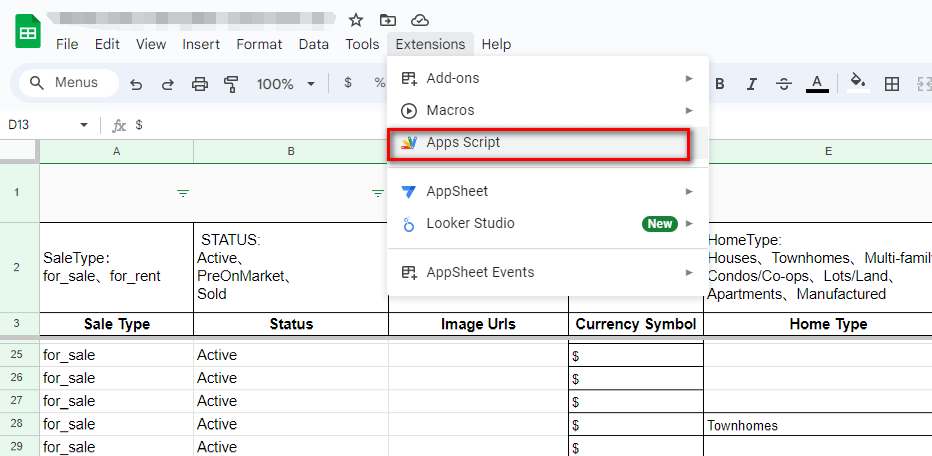
Click "Apps Script"
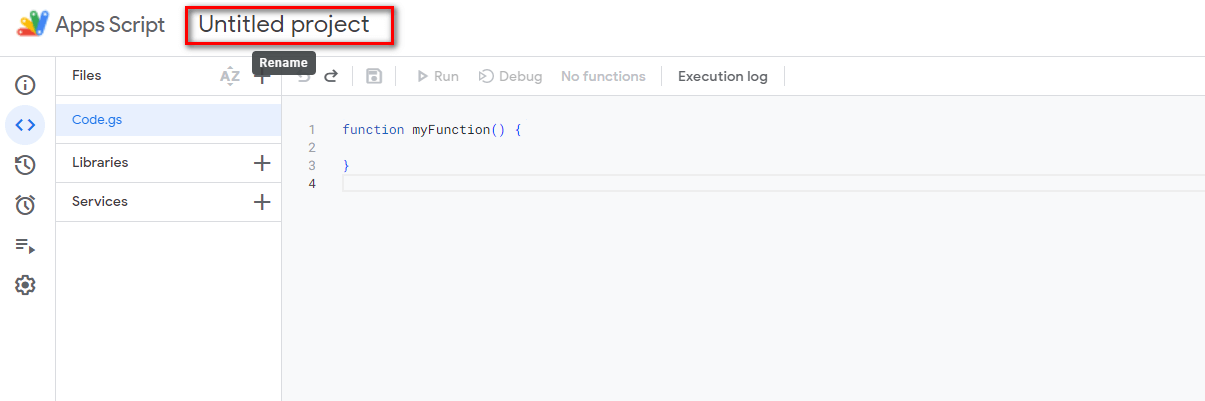
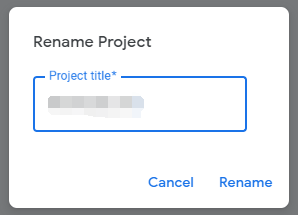
 - Rename Project - Click "Untitled product"
Set CallNewOaks Function
Replace the serial number value with your chatbot ID within the "callNewOaks" function and copy the function to replace the default function under "Code.gs" section
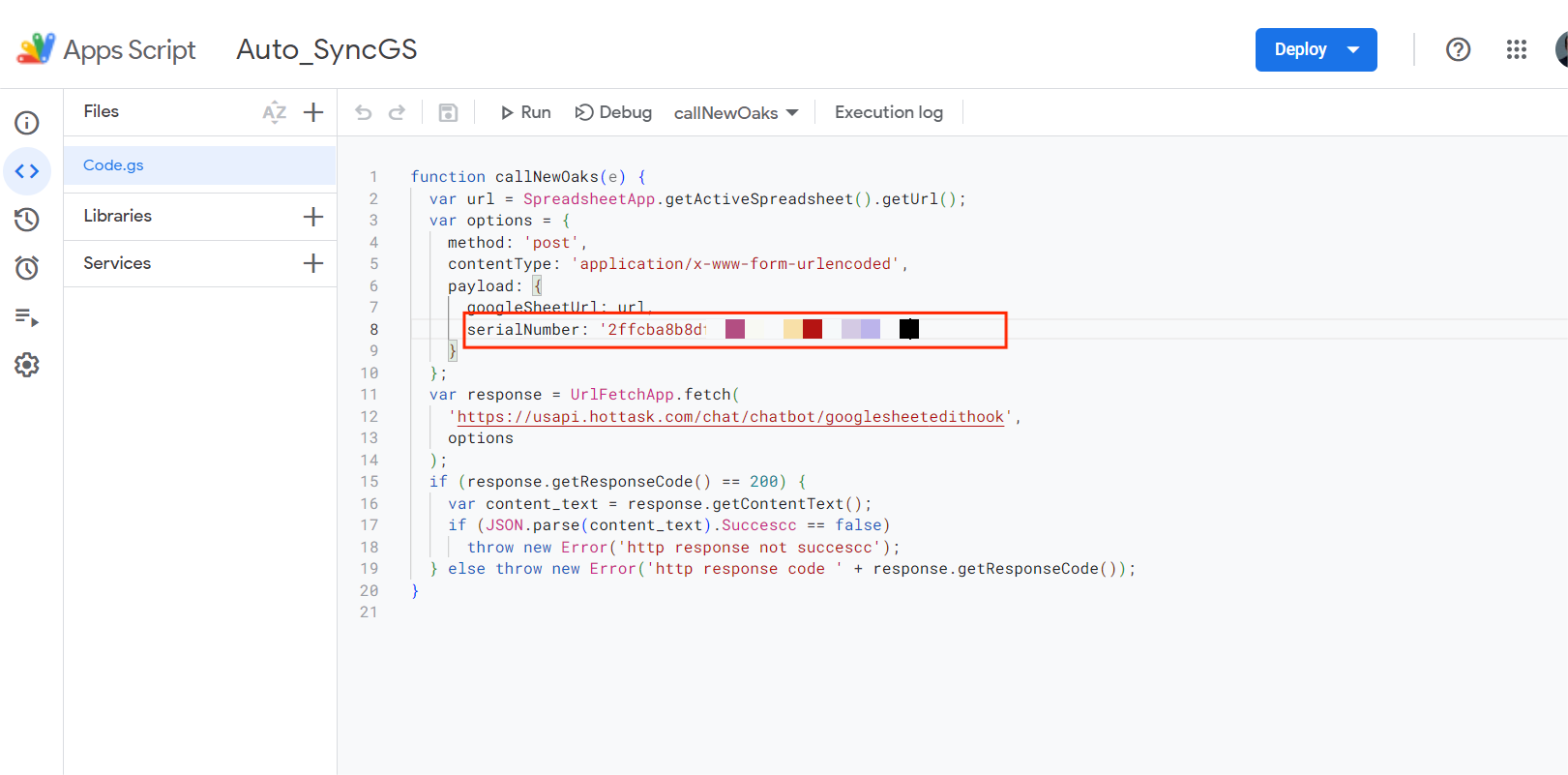
'serialNumber': '<YOUR_SERIAL_NUMBER>' The value of this "serialNumber" is located in Chatbot -> Settings -> General -> Chatbot ID.
// Replace <YOUR_SERIAL_NUMBER> with your chatbot ID.
function callNewOaks(e) {
  var url = SpreadsheetApp.getActiveSpreadsheet().getUrl();
  var options = {
    method: 'post',
    contentType: 'application/x-www-form-urlencoded',
    // Read the response body even on a non-2xx status, so errors are never hidden.
    muteHttpExceptions: true,
    payload: {
      googleSheetUrl: url,
      serialNumber: '<YOUR_SERIAL_NUMBER>'
    }
  };
  var response = UrlFetchApp.fetch(
    'https://usapi.hottask.com/chat/chatbot/googlesheetedithook',
    options
  );
  var content_text = response.getContentText();
  var result = JSON.parse(content_text);
  // Important: the API returns HTTP 200 even when the request is rejected
  // (for example an unknown chatbot ID). Always check the "Success" field in
  // the body — the HTTP status code alone is not enough.
  if (result.Success === false) {
    throw new Error('NewOaks sync failed [' + result.Code + ']: ' + result.Message);
  }
}
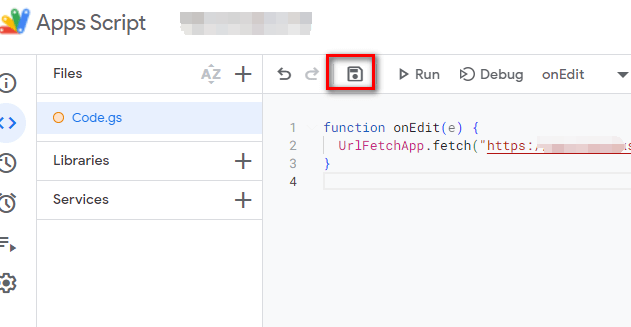
Save Project
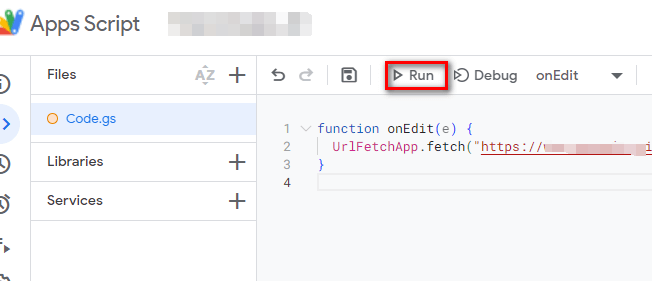
 - Run the selected function
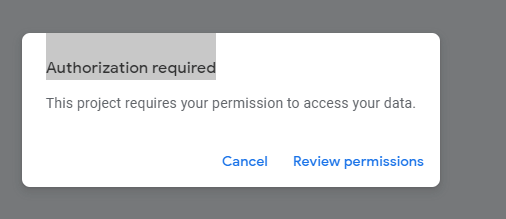
 - Click "Review permissions"
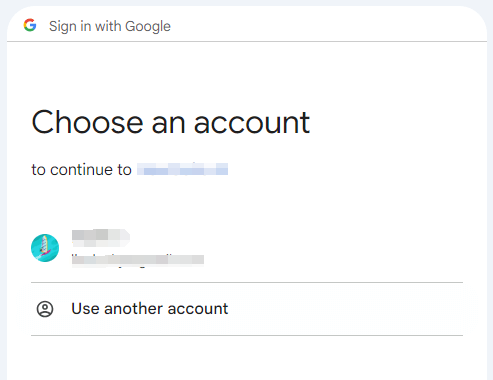
 - Choose an account
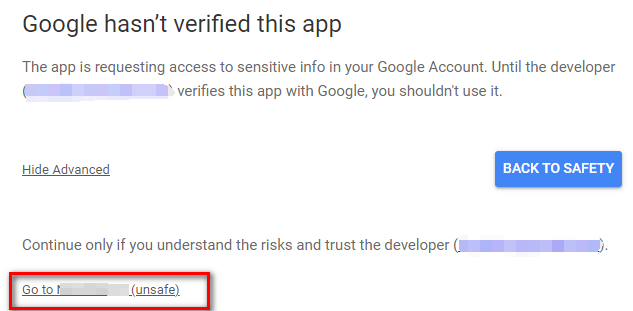
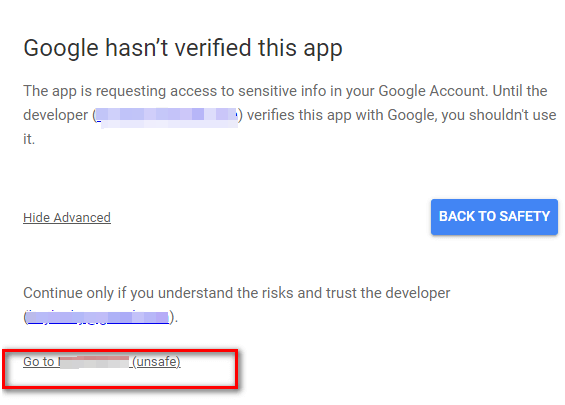
 - Click "Go to NewOaks AI(unsafe)"
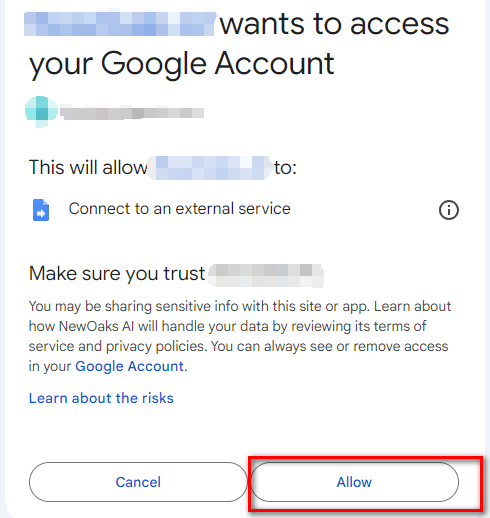
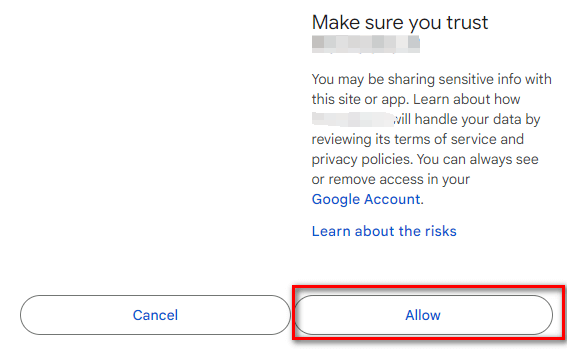
 - Click "Allow"
Add triggers
- click "Triggers"
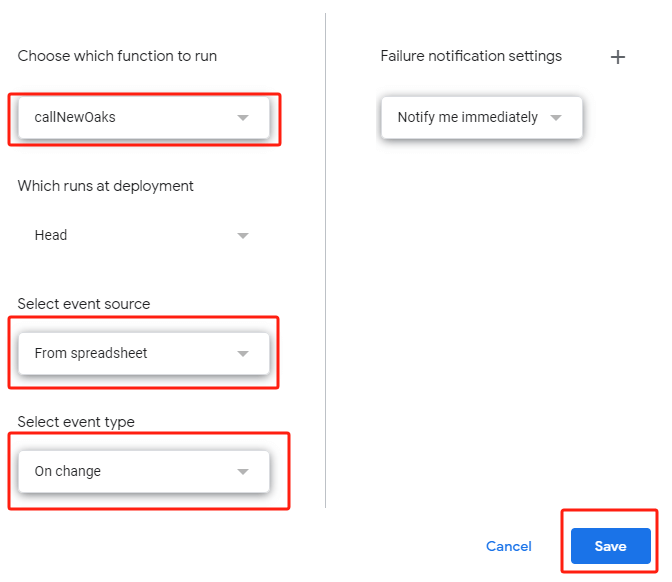
 - create a new trigger
 - Add Trigger for NewOaks AI
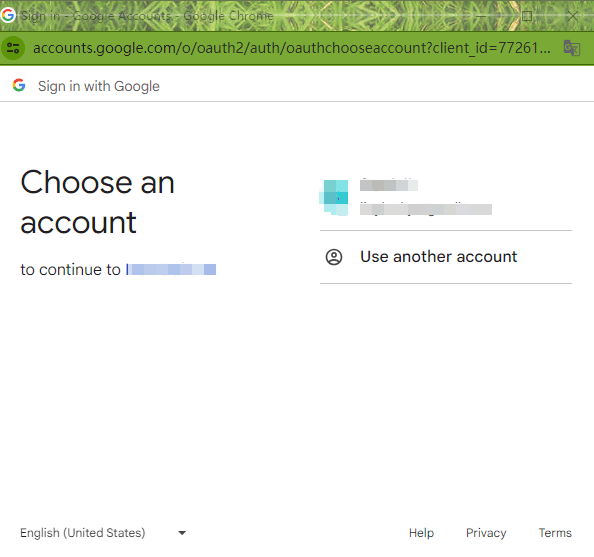
 - Choose an account

Verify data synchronization
You can modify the content of the Google Sheet and check whether the chatbot data is effective after 15 minutes.